Change your Password
How Can We Help?
-
Automotive
- Articles coming soon
-
CSR Training
-
Flat Glass
- Articles coming soon
-
Safety
-
-
- Bakor Polybitume Sealant
- Bohle UV Adhesive MV 740
- Bohle UV Adhesive MV 760
- CRL Silicone 33
- DAP Alex Plus
- DAP Putty
- Dow 795 Sealant
- Dow 995 Structural Sealant
- Dymonic
- Mulco Supra Expert Sealant
- NuFlex Hi Temp Silicone Sealant
- Sprayway 66 Spray Glue
- Titebond Heavy Duty Adhesive
- Tremco Butyl Sealant
- Tremco Gutter Seal
- Tremco Spectrum II
- Tremsil 200
- Tremsil 600
- Show Remaining Articles3 Collapse Articles
-
-
Computer Applications
-
RingCentral
-
FAQs
- Articles coming soon
← All Topics
You are here:
Print
Created On8th December 2019
Updated8th December 2019
byRyan Nimilowich
- Log in to the RingCentral Online account. If you logged in using an admin account, click Admin Portal > My Extension.
- Go to Settings > User Details.
- Under User Details, click Change Password.
- Enter your Current Password. This is to verify the changes you are about to make. You can click on the eye icon to toggle show/hide your password.
- Enter the new password under New Password and Reenter New Password. Follow the Password Criteria as you type your new password.
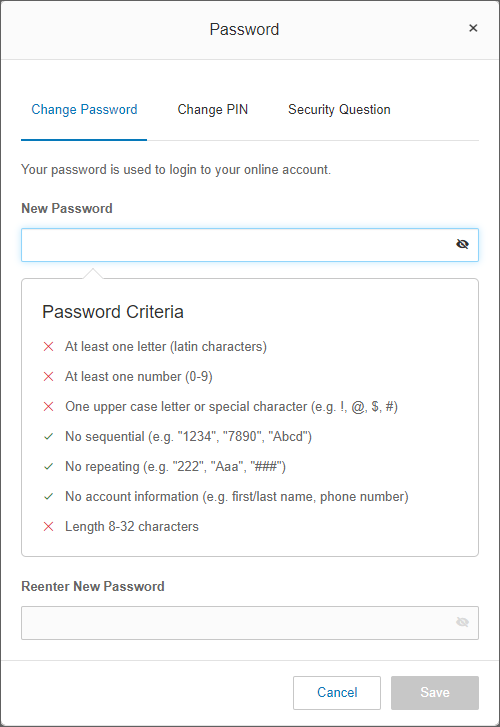
6. Click Save.
Table of Contents